
Troubleshooting & notes
- Soft reset: pressing
ACrepeatedly often terminates a stuck calculation. - Factory reset / Initialize all: many Casio scientifics have a Reset option under
SHIFT→9(Reset), then choose3(Initialize All) or follow the SETUP/RESET flow on ClassWiz models. - Back-panel restart: some models include a tiny restart button on the back; press with a paperclip ~5s.
- Battery removal: removing the main battery or covering solar cell until the unit loses power is a last-resort option (will clear memory/variables).
- If unsure, consult your model's manual (official Casio support has model PDFs & SETUP/RESET instructions).
Note: Steps shown are the standard reset sequences commonly used on Casio scientific calculators — please double-check your exact model manual if you rely on the calculator for exams or critical work.
If your Casio calculator is acting strange, showing wrong results, or just not responding, it may be time for a reset. This guide and interactive tool below will help you learn how to reset any Casio calculator model — including ClassWiz, fx-991EX, fx-991ES, fx-82MS, fx-85MS, and more.
Whether you need a soft reset, factory reset, or full initialization, this simple tutorial explains everything you need to know to get your Casio calculator working like new again.
For more educational and electronic utilities, visit our 👉 Gadgets & Device Calculators section where you’ll find repair, troubleshooting, and setup tools for other devices.
🔍 What is a Casio Calculator Reset?
A Casio calculator reset restores your calculator’s default settings — clearing all stored data, modes, and setup preferences.
There are generally two types of resets:
-
Soft Reset (Quick Reset):
Used when your calculator is frozen, lagging, or showing incorrect answers. It doesn’t delete stored data or settings. -
Factory Reset (Initialize All):
Returns the calculator to its original factory state, removing all stored memory, variables, and custom configurations.
Resetting can solve common problems like:
-
Calculator not turning ON or freezing
-
Incorrect or inconsistent calculations
-
Stuck in a specific mode (e.g., STAT or MATRIX mode)
-
Display glitches or unusual symbolsYou can also go through - Scientific Calculator Casio
⚙️ How to Use the Casio Calculator Reset Tool
Use the Casio Reset Helper tool above to find reset instructions for your model.
Steps:
-
Select your Casio model (e.g. fx-991EX, fx-991ES, fx-82MS).
-
The tool will instantly show step-by-step reset instructions.
-
Click “Simulate keys” to visualize the reset button sequence.
-
Use “Copy steps” to save the instructions for later.
This makes it easy to follow the exact key sequence required for your specific Casio model without guessing.
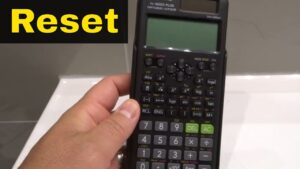
⚡ How the Casio Reset Tool Works
Our online reset assistant uses verified Casio factory instructions to display reset procedures for each model.
When you select a model, it loads:
-
The correct key sequence (e.g. SHIFT → 9 → 3 → = → AC)
-
Step-by-step actions that mimic your calculator’s menu
-
Optional simulation showing which keys to press in order
You don’t need to install any app — just choose your model and follow the visual instructions to safely reset your calculator.
✅ Why Use This Online Casio Reset Tool
Here’s why students, teachers, and professionals prefer using this online Casio reset calculator:
-
Model-Specific: Supports ClassWiz, ES, and MS series calculators.
-
Accurate & Updated: Based on Casio’s official manuals and verified instructions.
-
Visual Simulation: Shows you the exact button sequence.
-
Instant Access: Works directly on any device — no download required.
-
Safe to Use: You’re only viewing instructions — no data or permissions needed.
Whether you’re preparing for exams or daily office calculations, this reset helper saves time and ensures your calculator performs perfectly.
❓ Frequently Asked Questions (FAQ)
1. How do I factory reset my Casio fx-991EX?
Turn ON the calculator → Press MENU → Choose System Settings → Select RESET / Initialize All → Confirm with Yes.
You can also use the small restart pinhole on the back if it’s unresponsive.
2. How do I reset my Casio fx-82MS calculator?
Press SHIFT → 9 (RESET) → Choose 3 (Initialize All) → Press = → Then AC to finish.
This clears modes and memory, restoring default settings.
3. My Casio calculator is not turning ON. What should I do?
Try pressing AC/ON several times. If it doesn’t respond:
-
Replace the battery
-
Press the restart button on the back with a paperclip
-
Leave the calculator in a bright place to charge solar cells (if applicable)
4. Does resetting delete all stored data?
Yes, a factory reset (Initialize All) removes memory, stored equations, and custom settings.
For a soft reset, only the active mode resets — your data remains safe.
5. How do I know if my Casio calculator has been reset successfully?
After a reset, the display shows “RESET All?” or “Initialize All?” followed by a confirmation. When completed, the calculator returns to the default setup mode (COMP mode).